
Overview
CoinRobot.AI aims to provide a unified and easy-to-use interface to existing trading platforms by using modern technologies, including automated strategy execution, API integrations, community strategy building, AI and blockchain-based solutions. The system is not an exchange, broker, wallet, custodian or financial adviser.
CoinRobot.AI is a community robot: strategies are not provided exclusively by the project. Users may create, edit, publish, copy and use strategies in their own Plans. Public availability of a strategy does not mean recommendation, approval, certification or any promise of returns.
The robot does not store money, crypto assets, stocks or any other assets. With a CEX, assets remain at the CEX chosen by the user; with a DEX, they remain in a dedicated Vault (smart contract) created and owned by the user. CoinRobot.AI may issue BUY/SELL or equivalent trading instructions via API based on the Connector and Plan created by the user.
On supported interfaces, users may voluntarily create a Connector by supplying the necessary API data, then run Plans on it with a strategy they select or write. Trading statistics and detailed logs are available for review.
A Plan offers three StopLoss behaviors: after executing StopLoss it can continue trading, close the position and exclude the affected symbol from the current run, or not apply StopLoss at all. When a symbol is excluded, the system also notifies the user by email.
Some strategies can also be used in an AI-managed mode. Their exact formulas can always be inspected and modified, and strategies may be shared privately or publicly as needed.
The system is a research and development project, therefore its functions, interfaces, supported platforms, pricing and technical operation may change. Anyone using the system acknowledges that it is software under active change and accepts all trading, technical, legal and financial risks personally.
CoinRobot.AI operates on credits. Credits are currently provided free in coupon form, while additional credits can be obtained for individual needs, currently by USDC transfer. Trading consumes credits, while referrals and other users’ use of published strategies may increase the balance. The Account page shows detailed movements and the paid/free composition.
Start trading with CoinRobot
The complete setup has two main steps: create a Connector, then start a Plan. The diagram uses the full available width and can also be opened at full size.
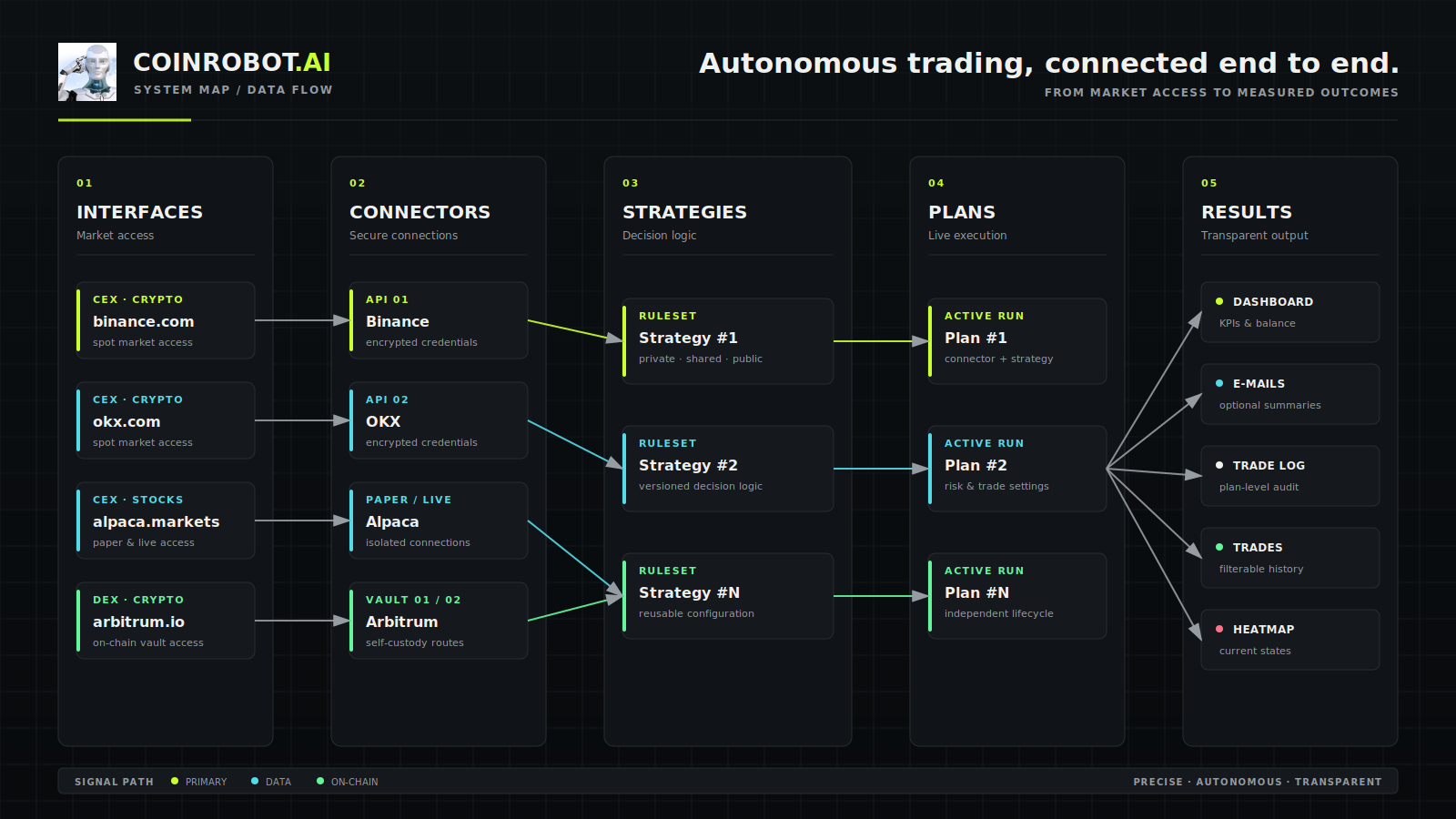
1. Create a Connector
Choose an available interface, and grant only the permissions listed in its guide: Binance, OKX, Alpaca, Arbitrum, or Solana.
Connector field explanations
- Interface: select the external platform you want to connect to.
- Connector name: give the connection a clear, easily recognizable name.
- Symbols: select the assets the robot may trade through this Connector.
- Authentication details: enter the API details requested by the interface or generate the DEX Vault. For a CEX, grant only read and Spot trade access, never withdrawals. Generate the first DEX Vault from your wallet with the Create/Generate button.
2. Start a Plan
On the Plans page, select the Connector and start trading with an existing strategy, or create your own. Check open-position balances on the Dashboard.
Plan field explanations
- Plan name: give the Plan a clear, easily recognizable name.
- Connector: select which existing connection the Plan should trade through.
- Symbols: select which of the Connector's assets you want to trade in this Plan.
- Strategy: select the strategy that determines trading decisions.
- Always use the latest strategy version: automatically follow new versions of the selected strategy.
- Use AI-optimized version when available: if selected and an AI-optimized variant exists for the current strategy version, the Plan is also allowed to run that variant. This is independent of following the publisher’s latest versions, so you can accept AI optimization without automatically accepting later publisher changes, or vice versa.
- Type: BUY/SELL opens and closes positions against the fiat asset; CONVERT rotates capital among selected assets.
- After StopLoss: choose whether the Plan continues, excludes the affected symbol after closing its position, or does not apply StopLoss.
- Portfolio drawdown protection: choose what the robot does when the whole Plan reaches its loss limit.
- Portfolio drawdown limit (%): set the session loss percentage that activates portfolio protection.
- Backtest: simulate on historical data without placing real orders.
- From date: set the first day of the backtest period.
- To date: set the last day of the backtest period.
- Rotated amount: enter the capital assigned to the Plan.
- LOT size: enter the size of one BUY/SELL trade.
- Max invest (%): limit how much of the Plan's capital may be open in each asset.
- BUY cooldown (minutes): set the minimum time between two BUY operations.
- Email me about every trade: receive an email for every executed trade.
Strategy field explanations
- Strategy name: give the strategy a clear, easily recognizable name.
- Description: summarize the market situation, purpose, and behavior for which the strategy was designed.
- Visibility: choose whether the strategy is available only to you (Private), to everyone (Public), or only to selected users (Limited).
- Limited referral IDs: for Limited visibility, enter the referral IDs of users who may access the strategy, separated by commas.
- BUY: enter the position-opening formula; the robot initiates a purchase when the formula evaluates to TRUE.
- BUY test symbol: enter an asset whose current data the Test formula button can use to validate and evaluate the BUY formula.
- SELL: enter the normal position-closing formula; the robot initiates a sale when the formula evaluates to TRUE.
- SELL test symbol: enter an asset whose current data the Test formula button can use to validate and evaluate the SELL formula.
- StopLoss: enter the emergency-exit formula; StopLoss activates when the formula evaluates to TRUE.
- StopLoss test symbol: enter an asset whose current data the Test formula button can use to validate and evaluate the StopLoss formula.
Important formula-writing aid: expand the explanatory calculator table at the bottom of the Strategies page. It contains every available calculator's short name, category, description, possible values, and calculation method. Use the 📋 copy button in its header to copy the complete content—including formula rules and accepted operators—in one step, then give it to an AI to help write a valid BUY, SELL, or StopLoss formula.
Before running a live Plan, verify every formula with the Test formula button and a backtest.
Buttons at the bottom of the Plan form: Save only saves the Plan settings; it does not start execution. Save as creates a new copy of the Plan, even when the original Plan is currently running. The green Execute button starts actual Plan execution; a saved Plan begins trading only after you click this button.